


Fig 3.32 Search menu screen
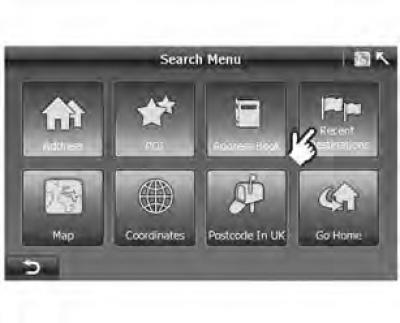
1. Click "Recent Destination" ("Recently selected destination") on the screen "Search Menu" ("Search menu").
- On the screen "Search Menu" ("Search menu") (figure 3.32) press the button "Recent Destinations" ("Recent Destinations") to go to the screen "Recent Destinations" ("Recent Destinations") (figure 3.33).
Figure 3.33 List of recent destinations
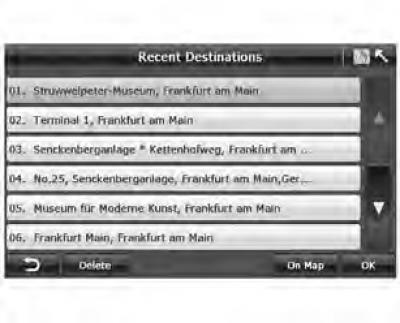
2. Select the desired destination.
- Select a recent destination that you want to set as the current destination and click "OK". Options: Click "On map" to check the location of the destination.
3. Press "OK" to proceed to the screen "Route Plan" ("Route plan").
If the system is working normally, it will automatically return to the screen "Route Plan" ("Route Planner"), and the selected destination will be displayed in the list of destinations.
 : Return to the previous screen.
- Removal: Delete one destination.
- On the map: Click and display the selected destination on the map.
- OK: Confirm destination selection.
 : Press to go to the last screen. The button is grayed out to indicate that this feature is disabled.
 : Press to go to the next screen.
(The original article is on the website ChevyMan)