


Fig 3.34 Search menu screen
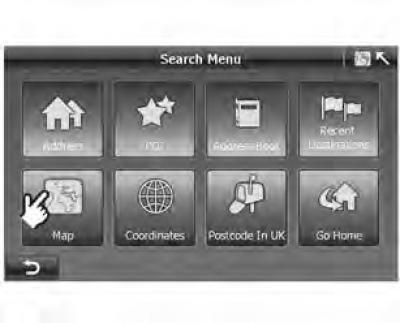
1. Click "Map" in the window "Search Menu" ("Search menu");
- A window will open on the screen "Map Search" ("Search on the map") (figure 3.35).
Figure 3.35 Finding a destination on the map
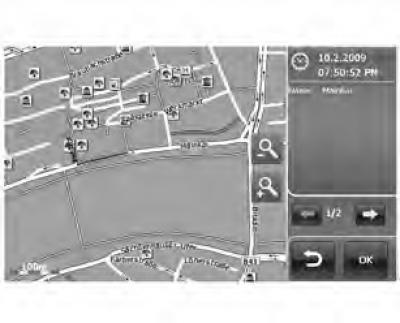
2. Move the map and click on the desired point on the map;
- On the screen "Map search" ("Search for a map") (figure 3.35) you can find the necessary places by changing the scale of the map or by moving it.
- You can tap the screen on a point of interest or road to display additional information about that object (figure 3.36).
- Click
 , to view details of other points of interest if there are multiple points of interest in one location.
Figure 3.36 Viewing details of a point of interest on the map
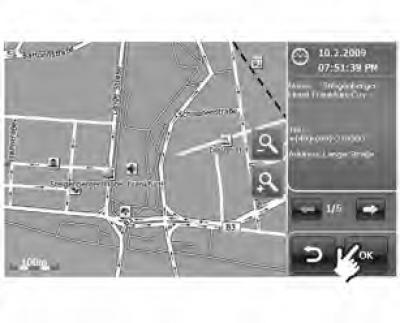
3. Press "OK" to proceed to the screen "Route Plan" ("Route plan").
- Once you have found your destination, click "OK" to add it.