


Contents: (1) Search for points of interest in… ↧ (2) Search for points of interest… ↧ (3) Search for points of interest by… ↧
Fig 3.15 Search menu
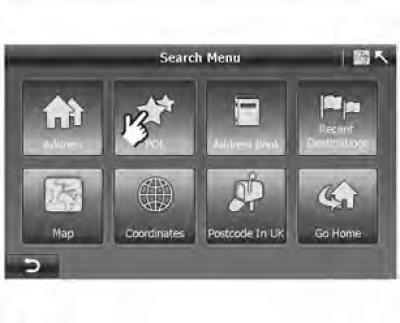
Points of interest (POI) are places that are of particular interest to the user. Interesting places are marked on the map with special symbols.
There are 23 categories of points of interest in the A-Navi system, such as hotels, gas stations, restaurants, attractions, etc.
Points of interest with the same category use the same symbol. If you save your point, favorite place to visit or address, you can choose the symbol.
Figure 3.16 Point of Interest Menu
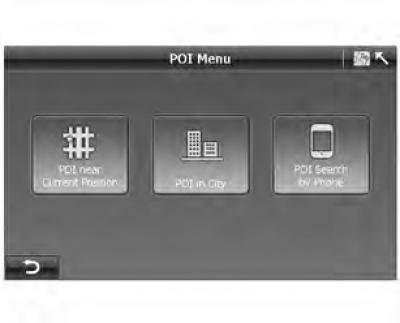
The A-Navi system provides three ways to search for points of interest: searching for points of interest near the current position, searching in the city, and searching by phone number.
(1) Search for points of interest in the city
Example: Terminal 1, Frankfurt
Figure 3.17 Entering a country name
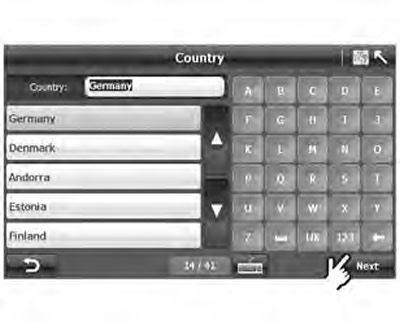
1. Click "POI in City" ("Points of interest in the city") in the window "POI Menu" ("Points of Interest Menu"):
- The system will go to the page "Country Search" ("Search for country") (figure 3.17);
- In the search bar on the screen "Country Search" ("Country Search") displays the last searched country "Germany" by default. Use ▲ or ▼ to scroll through the list of countries and select one of 41 European countries.
Figure 3.18 Entering the city name
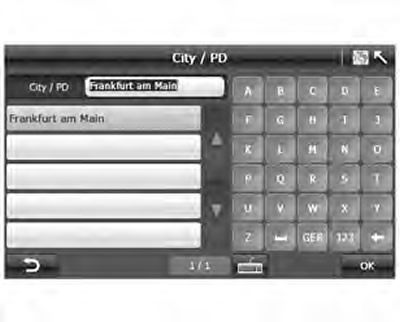
2. Then enter the city names and select one city from the suggested results.
- Using the keyboard, enter the city name in full or just the first few letters; the system will display a full list of cities whose names contain the specified letters.
- Press "OK" to proceed to the screen "POI Category Selection" ("Selecting a point of interest category"). If you need to change the name of the city, click
 , to return to the screen "City Search" ("City search").
Figure 3.19 Selecting a point of interest category
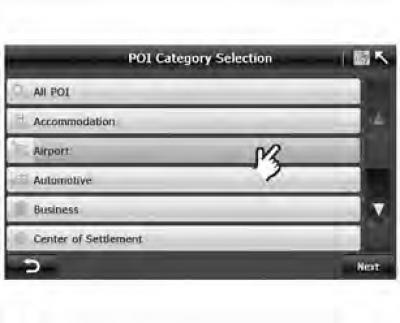
3. Select the point of interest category:
- After confirming the POI category, click "Next" to proceed to the screen "POI Search" ("Search for a point of interest").
Figure 3.20 Searching for points of interest in the city
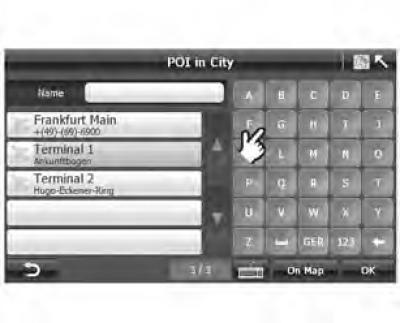
4. Select a point of interest from the search results or enter the name of the required point of interest.
- On the screen "POI Search" ("Search for a point of interest") the system will automatically display a list of points of interest near the default position. You can select it from the list or enter it yourself.
- Once you have selected a point of interest, click "On Map" to display the selected point on the map.
Figure 3.21 City point of interest on the map
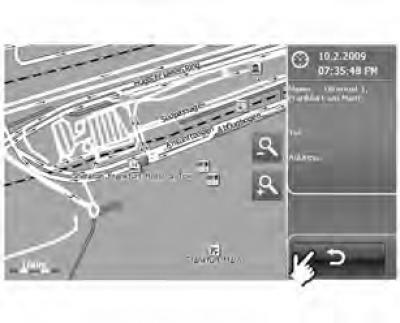
5. Check the position of the point of interest on the map:
- Click , to return to the screen "POI in the city" ("Point of interest in the city").
Figure 3.22 Route plan screen
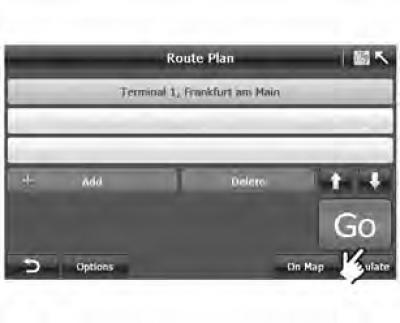
6. Press "OK" to confirm the selection of the point of interest and go to the screen "Route Plan" ("Route plan").
- After completing the search for the point of interest, click "OK", the system will automatically switch to the screen "Route Plan" ("Route plan") (figure 3.22), and the point of interest will appear in the list of destinations.
(2) Search for points of interest near the current location
The list of "Points of interest near current location" displays a maximum of 100 points, from the closest to the farthest in relation to your current location. Please note! If your position is fixed by a GPS receiver, the current position is considered to be the current position of your car. If GPS cannot determine the location, the current location is the last place for which coordinates were determined.
Figure 3.23 Point of Interest Menu Screen
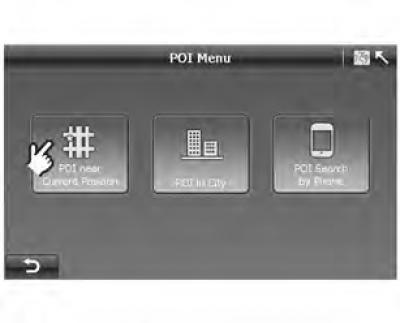
1. Select a point of interest near your current location.
- Select "POI near Current Position" ("Selecting a POI near your current location") in the POI menu and go to the screen "POI Category Selection" ("Selecting a point of interest category").
Figure 3.24 Selecting a category of points of interest
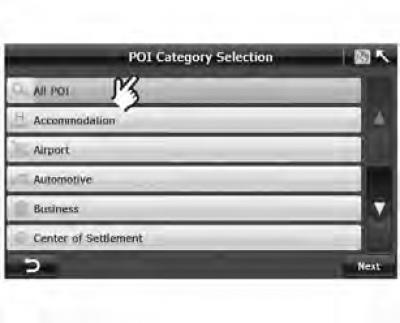
2. Select one category of points of interest.
- Press ▲ or ▼ to view other categories. Once you have confirmed your selection, press "Next". The following will be displayed: "Nearest POI list" ("List of nearby points of interest"). If you are not sure which category to choose, you can choose "All POI" ("All points of interest"). In this case, the system will display the nearest points of interest of all categories.
Figure 3.25 List of nearest points of interest
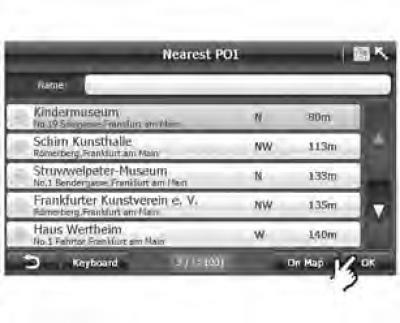
Select one point of interest from the resulting list and click "OK" to go to the screen "Route Plan" ("Route plan").
In the list "Nearest POI List" ("List of nearby points of interest") you can:
- A. select one point of interest (see P3.25).
- B. Enter the name or first letters of the name of the point of interest on the keyboard (see P3.26).
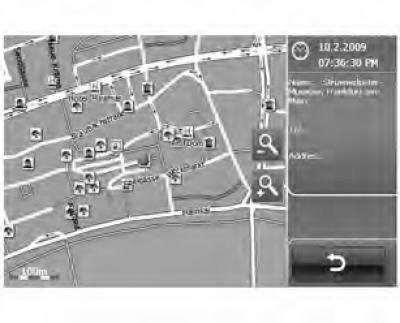
- C. check the location of points of interest on the map (see R3.27).
Figure 3.26 Entering a name for a point of interest
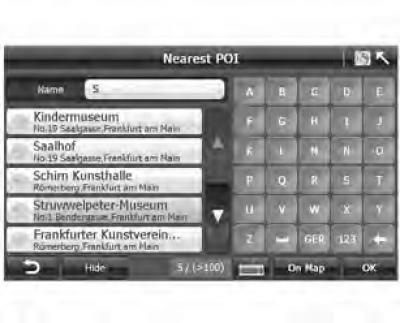
Figure 3.27 Nearest city point of interest on the map
(3) Search for points of interest by phone number
Figure 3.28 Point of Interest Menu Screen
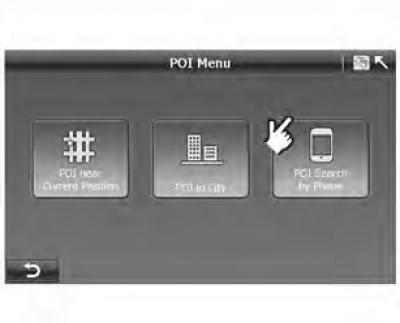
1. Press "POI Search by Phone" ("Search for a point of interest by phone number") on the screen "POI Menu" ("Points of Interest Menu")
- The system will then go to the screen "City Search" ("City search") (figure 3.29).
Figure 3.29 Point of Interest Menu Screen

2. Select one country:
- In the search bar on the screen "Country Search" ("Country Search") displays the last searched country "Germany" by default. Use ▲ or ▼ to scroll through the list of countries and select one of 41 European countries.
Figure 3.30 City search screen
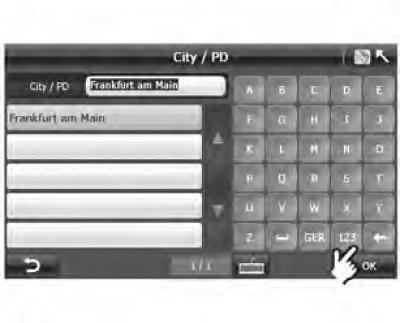
3. Enter the city name and select the name of the desired city;
- Enter the name of a city or the first few letters and the system will display all results that meet the specified criteria.
- Select a city and press "OK" to open the screen "Phone No Search" ("Search by phone number").
Figure 3.31 Entering a phone number
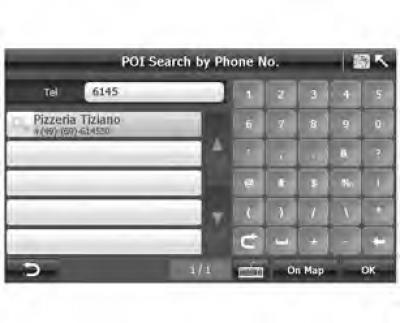
4. Enter a phone number and select one point of interest from the results that appear.
- The system automatically displays the city code and points of interest near the default city center.
- Select a phone number using the keypad and press "OK" to open the screen "Route Plan" ("Route plan").
The original article is on the website: CHEVYMAN.RU