


Contents: 1. Multimedia ↧ 2. Information functions ↧
1. Multimedia
MP3
| Compression type | MPEG-1 Audio Layer III |
| Sampling frequency | 8, 11.025, 12, 16, 22.05, 24, 32, 44.1, 48 (kHz) |
| Bit rate of data transfer | 8-320 (kbps) |
| Max folder nesting level | 8 |
| Max characters in folder/file name | 64 bytes |
| Character set for folder/file name | A to Z, 0 to 9, _ (underscore character) |
| Max. number of folders | 256 |
| Max. number of files | 512 |
| ID tag | Version 1.0, 1.1, 2.2, 2.3, 2.4 |
For stable sound quality during playback, a fixed bit rate of 96, 128, 192 kbps with a sampling frequency of 44.1 kHz is recommended.
If the bit rate of data transfer exceeds 192 kbit/s, audio jumps may occur when playing MP3 files. To play MP3 files, use a bit rate equal to or less than 192 kbit/s.
Note: Every file other than MP3 is also considered a file.
Using an MP3 Player
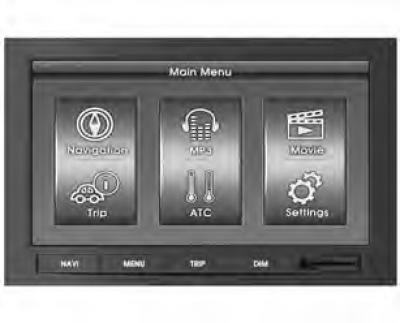
Press the MENU hardware button and the MP3 touch button. Press the MODE button on the steering wheel until the MP3 player is displayed.
The mode is changed by pressing the button on the steering wheel.
AM → FM → CD → AUX → NAVI → Multimedia → return to AM
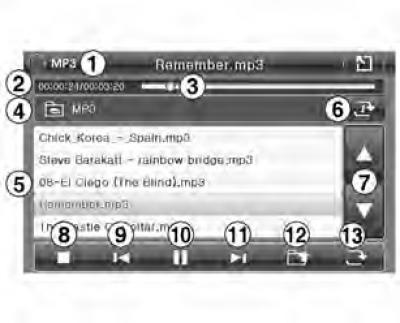
- 1. File information: Displays the file currently playing.
- 2. Playback duration
- 3. Playback state
- 4. Current folder: Displays the level of the file currently being played.
- 5. List of files
- 6. Repeat: Repeats the file currently playing.
- 7. List control: switching between pages.
- 8. Stop
- 9. Previous file: Selects the previous music file.
- 10. Play/Pause
- 11. Next File: Selects the next music file.
- 12. Previous Folder: Displays the previous higher level folder.
- 13. Shuffle: Play songs in random order.
Movies
Supported file formats:
| Audio system | MP3, WMA, OGG, WAV (bit rate of data transfer 128-192 kbps) |
| Video | MPEG1/2/4, DivX3.0/4.0/5.0, XviD, WMV7.0/8.0/9.0 |
| DTS | Not supported |
| Max. Permission | 800x480 |
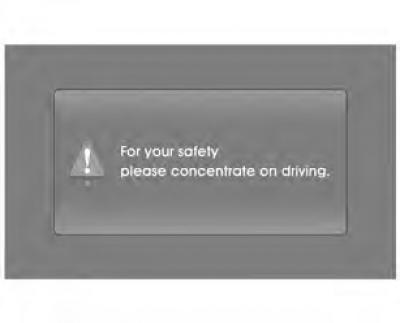
Attention:
- Videos with resolutions higher than 800x480 may not play properly.
- While playing a video, other operations become slow.
- When using SD card mixed mode (a combination of audio, video and data files) only audio or video files are recognized and played, depending on the selected mode.
- For the safety of the driver, movies can only be played when the vehicle is not moving.
Using the video player
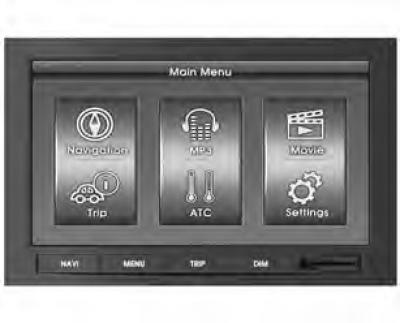
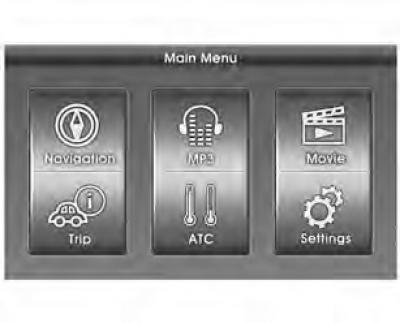
Press the hardware MENU button and the Movie touch button.
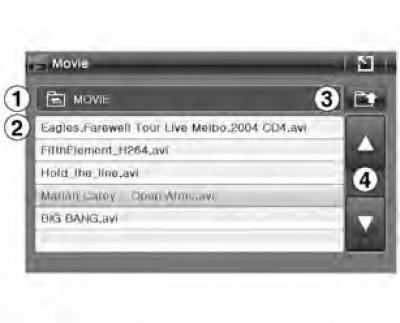
- 1. Current folder
- 2. List of files
- 3. Previous folder
- 4. List management
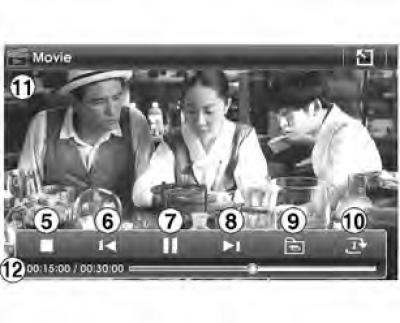
- 5. Stop
- 6. Previous file
- 7. Play/pause
- 8. Next file
- 9. List of files
- 10. Repeat
- 11. Full Screen function on/off.
- 12. Playback state
SD card
- Hard drives/CF memory cards are not supported.
- DRM protected files are also not supported.
Caution: Do not, under any circumstances, insert SD cards of the wrong size into the SD card slot.
Such cards may get stuck or damage the socket. In this case, the system replacement is carried out at the expense of the car owner.
2. Information functions
Route
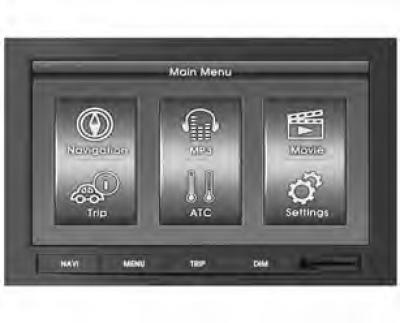
The route information section graphically displays the information the driver needs.
Press the TRIP or MENU hardware button and the TRIP touch button.
To close, click the button
 .
.
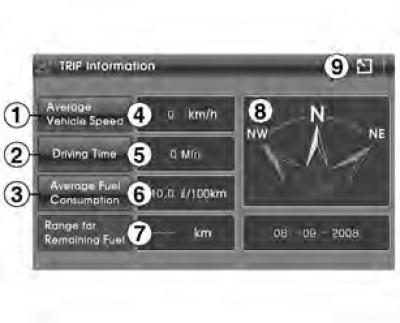
- 1. Resetting average speed data
- 2. Movement time reset button
- 3. Resetting average fuel consumption data
- 4. Average speed of the vehicle
- 5. Time of movement
- 6. Average fuel consumption
- 7. Distance to complete fuel consumption
Displays the distance the driver can travel on the remaining fuel in the tank. This distance is determined based on the average fuel economy of the last kilometers, so the distance may vary depending on speed, traffic conditions, etc.
- 8. Compass display: vehicle direction of travel
- 9. Return to the main menu
* Perform a reset before starting a new trip or driving a new route that you want to record.
ATC
The ATC information section displays the circulating air temperature.
Press the hardware MENU button and the ATC touch button. ATC information is also displayed by pressing and holding the volume button for 3 seconds.
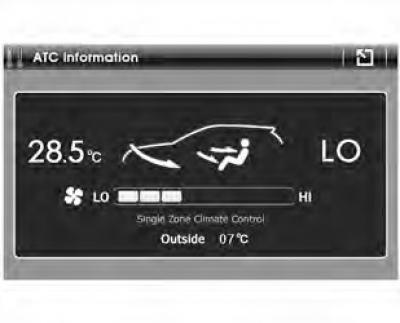
- 1. Setting the temperature
- 2. Outside air temperature
- 3. Wind direction
- 4. Condition of the air conditioning system (on/off.)
- 5. Status of the automatic temperature control system (on/off.)
- 6. Wind force
Rear view camera
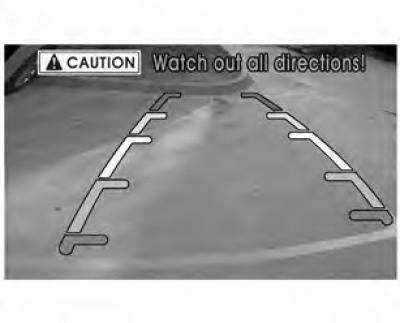
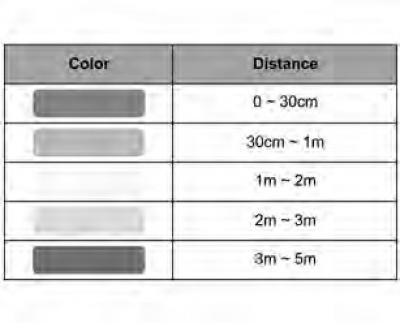
While parking your car, guide lines are displayed on the screen, (guide lines appear when reverse gear is engaged)
Attention:
- The function is available depending on the vehicle type.
- You can't rely entirely on the rear view camera, it can be dangerous in an unexpected situation. When parking, look around on all sides.
- The guide lines are optimized according to the width of the vehicle. However, the parking lines may not match the camera guide lines.
- Turn down the volume (MP3, navigation), so that you can hear the parking warning signals.
- Removal the SD card in rear view camera mode may cause the device to malfunction.
The article was reprinted from the website «ChevyMan»