
ChevyMan.ru
Mazda Mitsubishi Toyota Land Rover Honda Kia Nissan
English Русский
Български
Беларускі
Український
Српски
Hrvatski
Română
Polski
Slovenský
Magyar
|
Articles | Sitemap | Contacts |


Home   Aveo   Captiva   Cruze   Lacetti   Lanos   Niva   Tahoe   Others  
Captiva 1 (2006-2018)
  • Home
  • Captiva
  • 1 (2006-2018)
  • Manual
  • Navigation system
  • Search destination by address

Search destination by address (Chevrolet Captiva 1)

            0

Figure 3.4 Search by address
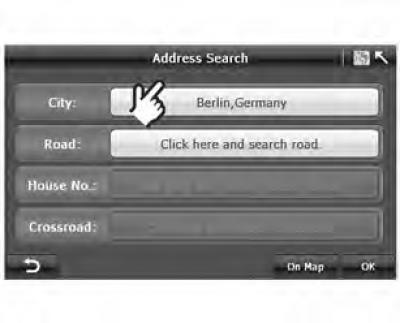


Figure 3.4 Search by address


Example: Senckenberganlage 25, Frankfurt, Germany

1. Click "Address Search" (search by address) in the window "Search Menu" (search menu):
  • On the screen "Search Menu" ("Search menu") (figure 3.4) press the button "Country" ("Country") to go to the screen "Country Selection" ("Select country") (figure 3.5).

Figure 3.5 Country search
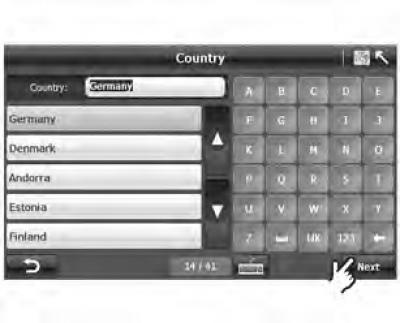


Figure 3.5 Country search


2. Select one of the European countries:
  • In the search bar on the screen "Country Search" ("Country Search" displays the last searched country "Germany" by default. Use ▲ or ▼ to scroll through the list of countries and select one of 41 European countries.

Figure 3.6 City search
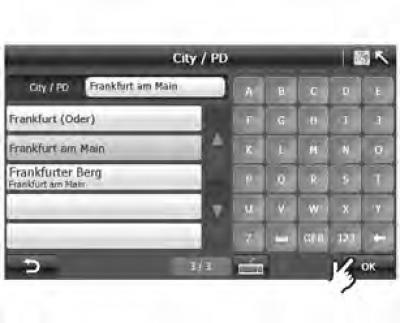


Figure 3.6 City search


3. To specify a destination, first enter the city name and confirm the selection of the desired city:


  • You can enter the name of a city or the first letters of the name, and the system will automatically provide a list of cities that match the letters entered.
  • Click on the button with the name of the city you have chosen, then click "OK" to confirm your choice. The system will return to the screen "Address Search" (Search by address) (figure 3.7).


Figure 3.7 Search by address
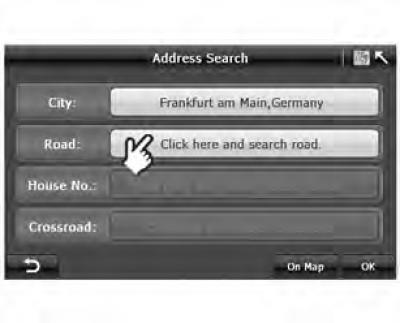


Figure 3.7 Search by address


4. Specify the name of the road by selecting it from the list provided:
  • On the screen "Address Search" ("Search by address") click on the road name input field and go to the screen "Road Search" ("Road search").

Figure 3.8 Searching for a road
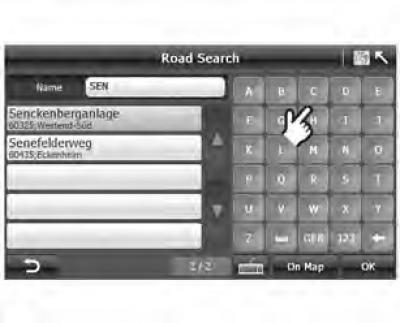


Figure 3.8 Searching for a road

  • On the screen "Road Selection" ("Search for a road"), enter the name of the road or the first letters of the name on the keyboard.
  • Once the road is selected, click "OK" and return to the screen "Address Search" ("Search by address").

Figure 3.9. Entering the house number
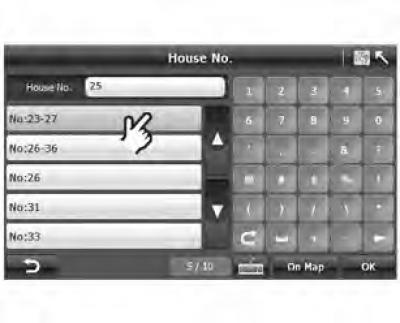


Figure 3.9. Entering the house number


Enter house number:


  • After entering the road name, click the field "click here and search house number" ("click here to search for a house number") to go to the house number entry screen.

Figure 3.10 Entering a house number
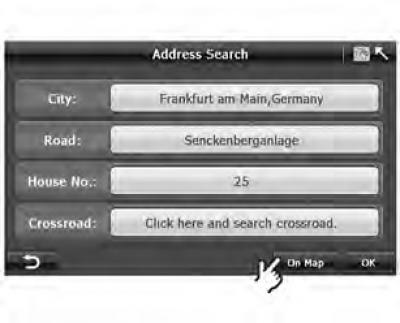


Figure 3.10 Entering a house number


Enter the house number on the keyboard and press "OK" to return to the screen "Address Search" ("Search by address").

If the house number you enter does not exist, the system will use the first result shown.

Figure 3.11 Checking the location on the map
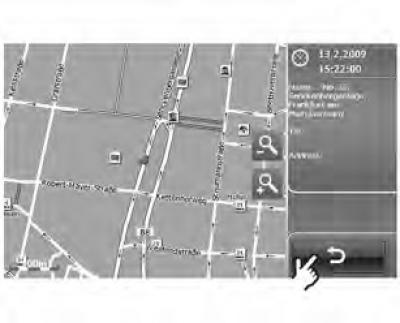


Figure 3.11 Checking the location on the map


6. Click "On map" to check the location of the entered address, or click "OK" directly to go to "Route Plan" ("Route plan").
  • Now click "On Map" to see the object with the address you specified on the map.
  • Then click "OK", the system will go to the screen "Route Plan" ("Route plan"), and navigation will begin.

Figure 3.12 Route plan
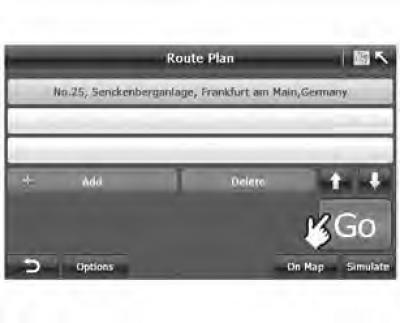


Figure 3.12 Route plan

  • On the screen "Route Plan" ("Route Plan") you can press the "Go" button to start navigation, or simulate navigation by pressing the "Simulate" ("Simulation").

An alternative method is to determine the location by intersections.


Options: After entering the road name, immediately select the intersection.

Figure 3.13 Searching for an intersection
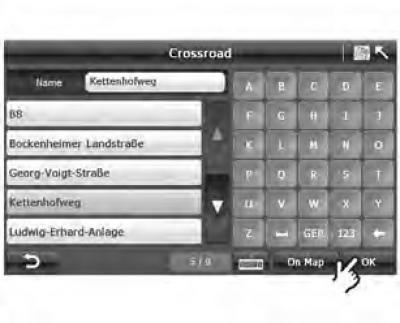


Figure 3.13 Searching for an intersection


On the screen "Address Search" ("Search by address") click on the road name input field and go to the screen "Road Search" ("Search for a road"). A list of all intersections along the Senckenberganlage will be displayed on the screen. Select the desired intersection and click "On Map" to see the selected road on the map.

Figure 3.14 Search by address
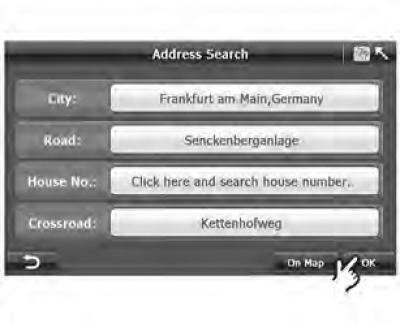


Figure 3.14 Search by address


You can also search for an intersection by its full name or by the first letters of the name. The system will automatically display a list of roads that match the search criteria. Select the name of the required road and press "OK" to return to the screen "Address Search" (Address search) (figure 3.14).

[The source of the article is available on the website: «CHEVYMAN»]

The article was checked: Vladimir Romannikov
This article is available at russian, bulgarian, belarusian, ukrainian, serbian, croatian, romanian, polish, slovak, hungarian

Share information:

Previous articles
Captiva 1: Navigation system
Next articles

Select Destination — Search
Getting started with the navigation system
Welcome to the A-Navi system
Navigation system functions
Setting up the navigation system
Search for a destination by point of interest
Selecting a destination from previous points
Selecting a point on the map as a destination
Search for a destination by coordinates
Selecting a destination from the address book


See similar articles on the topic of Chevrolet cars:
Search for leaks in the brake hydraulic drive Chevrolet Tahoe 2 and 3 (2000-2014)
Link in different formats to this page


Visitor comments

No comments yet


How much will 30 + 19 =


Captiva 1 (2006-2018) 
  • Manual
  • Before leaving
  • Keys, doors and windows
  • Seats, protection systems
  • Instruments and controls
  • Lighting system
  • Information and entertainment
  • Navigation system
  • Climate control
  • Driving a car
  • Car care
  • Maintenance
  • Engine 2.0 l (diesel)
  • Engine device
  • Troubleshooting
  • Engine repair
  • Cooling system
  • Engine electrical equipment
  • Control and power systems
  • Exhaust system
  • Engine FAM II 2.4D
  • Engine device
  • Troubleshooting
  • Engine repair
  • Cooling system
  • Engine electrical equipment
  • Control and power systems
  • Exhaust system
  • Engine HFV6 3.2L
  • Engine device
  • Troubleshooting
  • Engine repair
  • Cooling system
  • Engine electrical equipment
  • Control and power systems
  • Exhaust system
  • Transmission
  • Front drive axle
  • Rear drive axle
  • Automatic gearbox - device
  • Automatic gearbox - service
  • Automatic gearbox - repair
  • Manual gearbox - device
  • Manual gearbox - service and repair
  • Clutch
  • Transfer case
  • Chassis
  • Car suspension
  • Brake system
  • Steering
  • Body
  • Heating and ventilation
  • Air conditioning (manual)
  • Air conditioning (automatic)
  • Seat belts
  • Airbags
  • Car seat
  • Interior (internal elements)
  • Exterior (external elements)
  • Doors and windows
  • Electrical equipment
  • Equipment and devices
  • Lighting and lamps
  • Windshield wipers and washers
  • Electrical circuits


ChevyMan.ru © 2017-2026 · Mobile version · Feedback · Site search · Interesting to read · Sitemap: EN BG BY UA RS HR RO PL SK HU

Aveo 2003-2008 · Aveo 2006-2011 · Aveo 2012-2018 · Captiva 2006-2018 · Cruze 2008-2016 · Lacetti 2002-2009 · Lanos 2002-2009 · Niva 2002-2016 · Tahoe 1992-2000 · Tahoe 2000-2014 · Lumina 1 1989-1994 · Trailblazer 1 2001-2008 · Orlando 1 2010-2018 ·
🛡️ For your security and to improve our service, this site uses cookies. You can disable them in your browser.